Docking, Undocking, Hiding, and Closing Panels
You can control the way you view panels as follows:
- Properties Panels (Model Settings Properties Panel...) - hide, undock, or dock the panel.
- Array Selection Panel - hide, undock, dock, or close the panel.
- AI Assistant (model only) - hide, undock, dock, or close the panel.
- Assemblies Panell (model only) - hide, undock, dock, or close the panel.
- CLD Loops Panell (model only) - hide, undock, dock, or close the panel.
- Loops Panel (model only) - hide, undock, dock the panel.
- Message Log/Optimizer Messages (model only) - hide, undock, dock, or close the panel.
- Module Navigation Panel (model only) - hide, undock, dock the panel.
- Pages Panel (Interface) (interface only) - hide, undock or dock the panel.
- Parameter Control Panel l (model only) - hide, undock, dock, or close the panel.
- Results Panel (model only) - hide, undock, dock, or close the panel.
- Spell Check Panel - hide, undock, dock, or close the panel.
- All panels - resize the panel while it's undocked.
When you undock a panel, it becomes a floating window. You can resize it and place it anywhere on your desktop. If closed, it will reopen in the same position.
You can dock any panel on the left or right side of the model or interface window. If more than one panel is docked on the same side a tab will appear at the bottom, letting you switch between the panels.
Note The Causal Lens™, Group Plot, and Model Comparison dialog box, are floating windows (persistent dialogs) that can be closed, but not docked.
Note: Panels are associated with the window that opened them. If you have multiple models open, or if you have both a model and interface window open for the same model, you can have more than one instance of the same panel. Each of these will always be on top of the window it came from, and can be docked only in that window.
All Panels
- Undock the panel - click the
 button in the upper-right corner of the panel.
- Dock the panel - click the
 button in the upper-right corner of the panel, or drag the panel over to the left or right edge of the window and release it when the blue background appears.
- Hide the panel - click the
 button on the panel bar at the left side of the panel (
 if docked on the left).
- Unhide the panel - click the button on the panel bar at the right side of the Stella window ( if docked on the left).
- Move the undocked panel - drag the panel's title bar to place the panel anywhere on the screen.
Properties Panel
The properties panel can't be closed, but it can be hidden. It is shown in Edit mode, but not in Explore mode. Properties can be for the model, variables, tables, graphs, the interface or other objects on both the model and the interface.
LTM Panel (model only)
The LTM panel opens automatically after loops are computed, and closes when in edit mode. If the options to calculate loop dominance information is not checked, it will not open. You can undock this panel, but not close it, though you can hide it as above.
Pages Panel (interface only)
The Pages panel can't be closed, and it can't be hidden.
Other Panels
All other panels can be closed.
- Open the panel - from the Window menu, choose the panel you want to open. Some can also be opened from the Context Menu.
- Close the panel - first undock, then click the
 button at the right end of the panel's title bar.
Resizing a Panel
You can resize an undocked panel. You can also resize the application window.
To resize a panel or the application window:
- Position the cursor at a corner or any edge of the panel or window. The cursor will change to a pair of opposing arrows.
- Drag the corner or edge to resize the window.
Hiding a Panel
You can hide any panel by clicking on the button to the left of the pane (when docked to the right of the window):
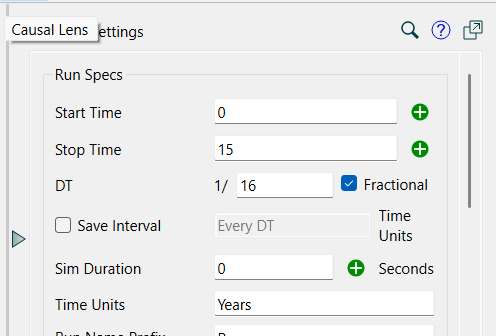 changing it to:
Clock on the button to open the panel back up. For panels docked on the left, use to close and to open.
Note If you have hidden the panels when working with a model then double clicking will unhide them and bring the properties panel to the front. If double click on an object, the panel will open for that object, if you double click on empty space the Model Settings Properties Panel will open.